Product Updates
how to split a check in happyspace pos
Split a ticket by item, split it evenly into checks, or take equal shares right at the register. Each check can be paid now or later, on any register. Here is the whole flow, step by step, with a printable guide for your team.
By HappySpace Team · · 6 min read
A table of four finishes dinner and someone says the words every server knows: "can we split it?"
In HappySpace POS (v0.1.70 and newer), splitting takes a few taps, and the checks you make are real checks. They stay together as one ticket on your Open list, each guest pays in any order, and it works from any register. Your reports still show the dishes you sold.
Download the guides for your team:
- Split checks staff guide (PDF, 11 pages): every step, with screenshots
- Quick reference card (PDF, 1 page): print it and keep it at the register
three ways to split
| Way | Best for | |
|---|---|---|
| 1 | By item | Each guest pays for what they ordered |
| 2 | Evenly into checks | A group that shared everything, paying now or later |
| 3 | Evenly · pay here | Everyone paying right now at the counter |
Every split starts in the same place: open the ticket, tap More payment options, then Split.
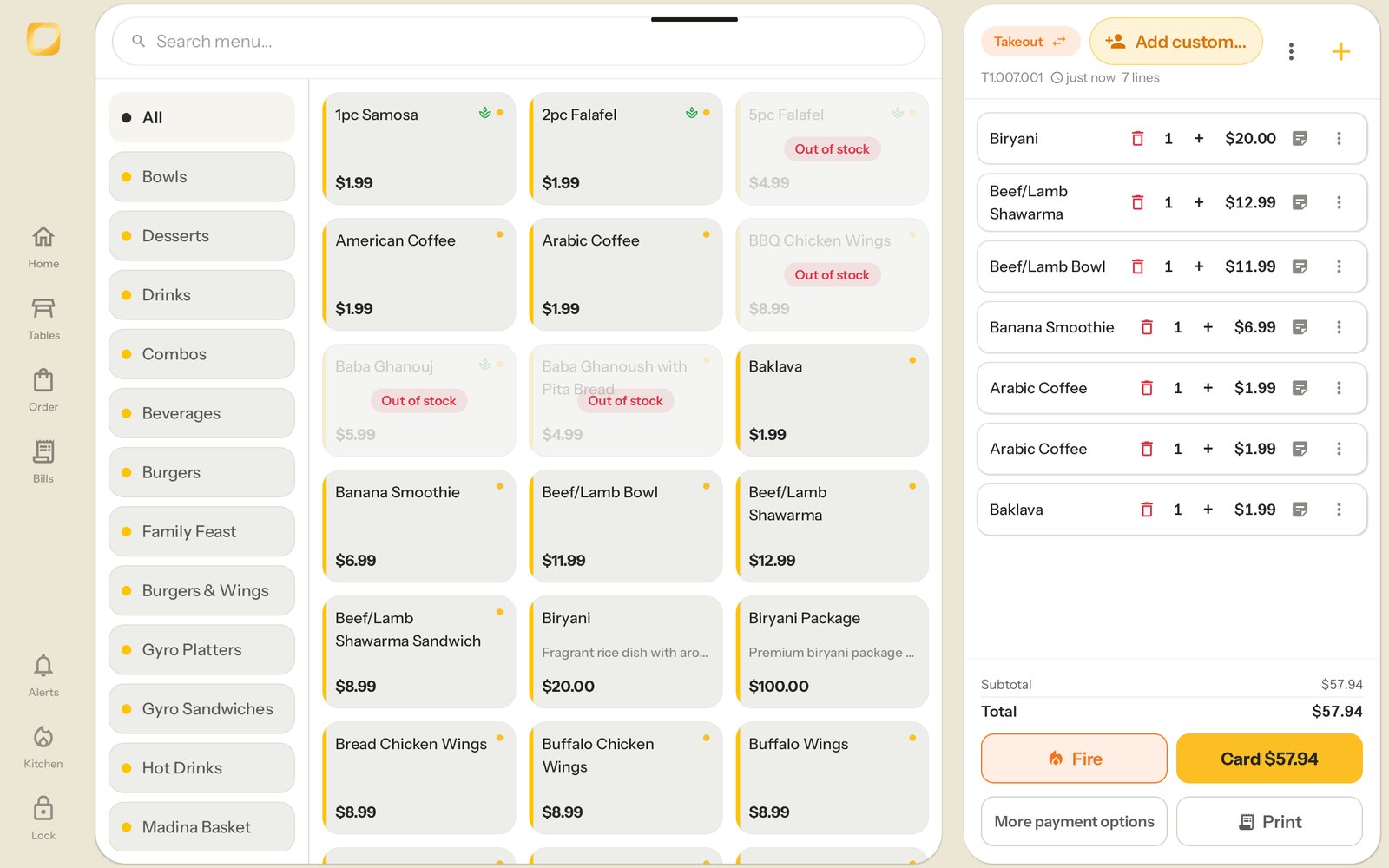
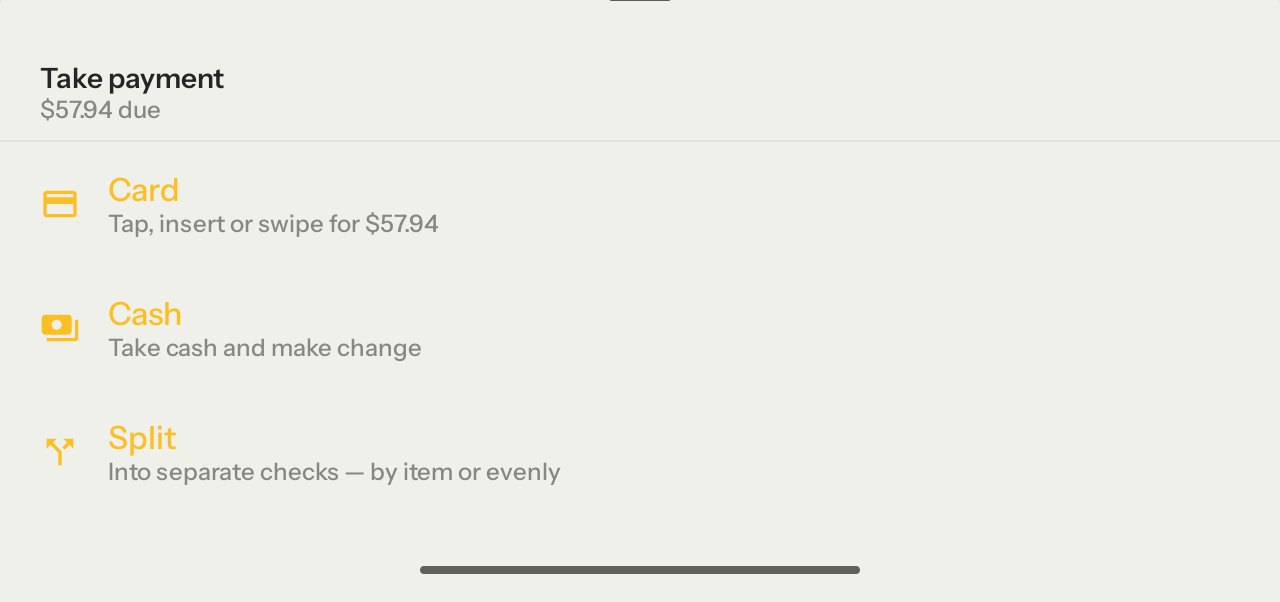
Split before taking any payment. If part of a ticket is already paid, Split tells you it can't be used.
1. split by item
The Split Checks and Items screen shows the ticket on the left. Give each guest's dishes their own check.
- Tick the items for the first guest.
- Tap + Add to new check. They move to Check 2, and both totals update.
- Repeat for each guest. To add to a check that already exists, tick items and tap Add to Check 2 on that check.
- Tap Done to create the checks.
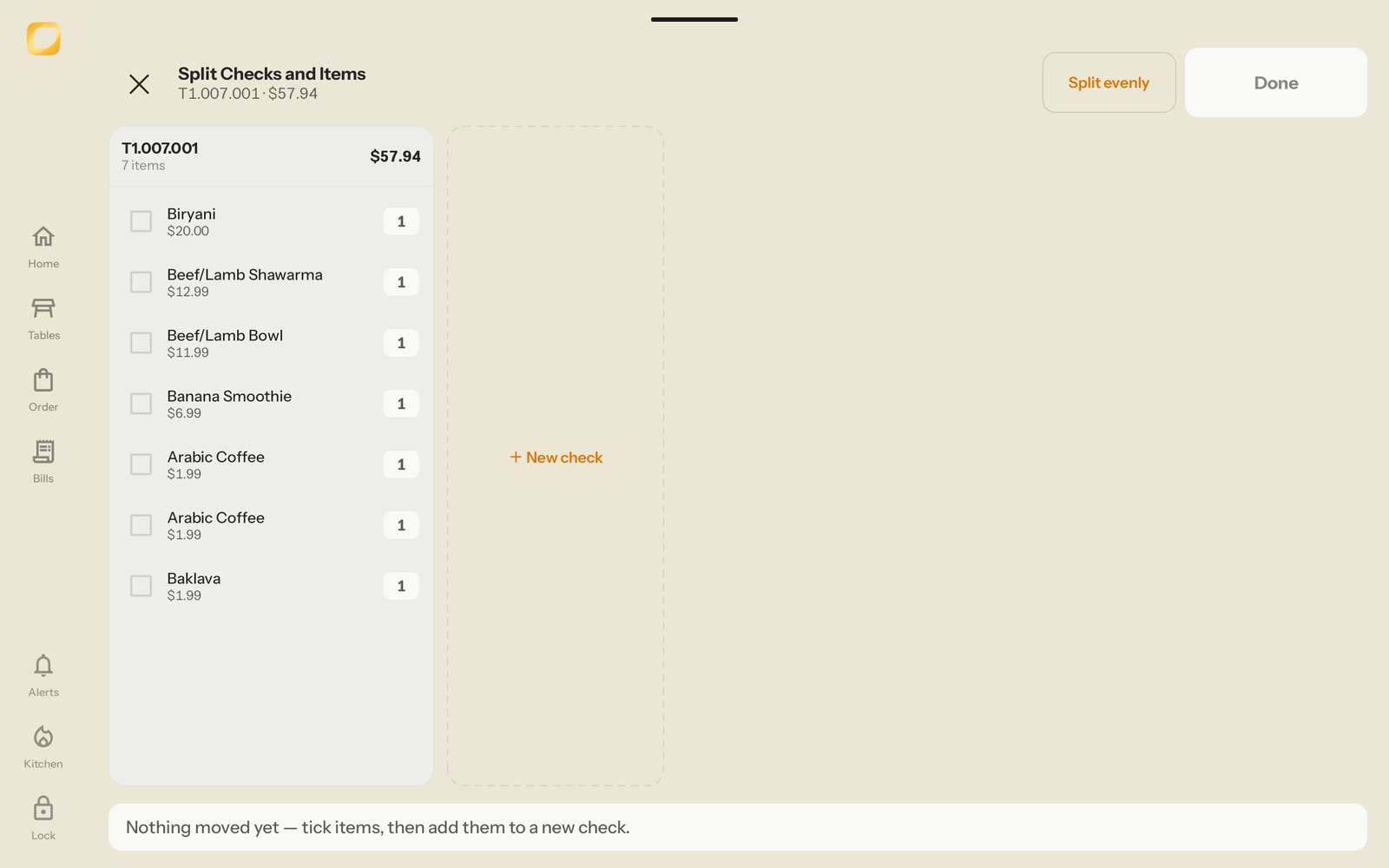
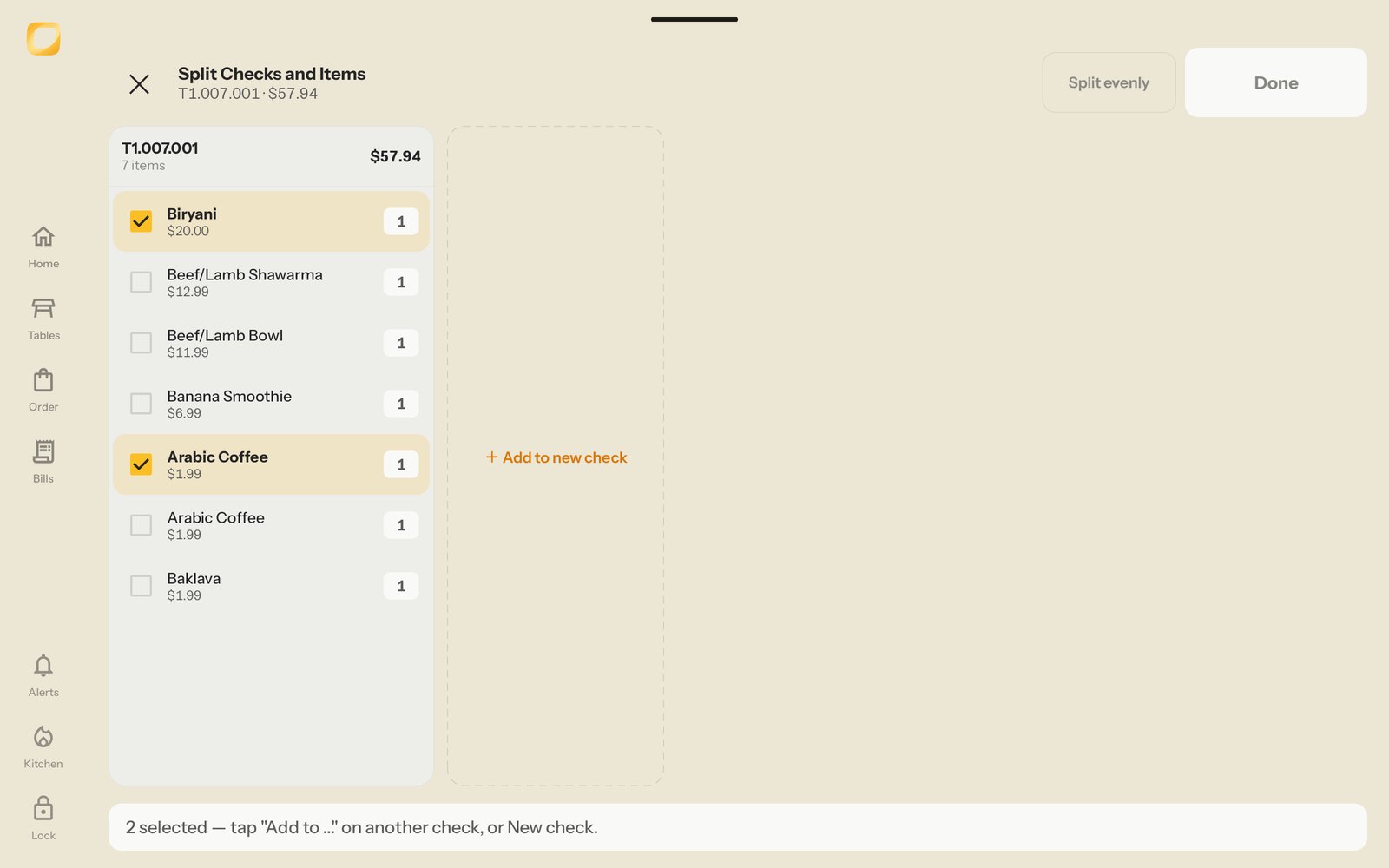
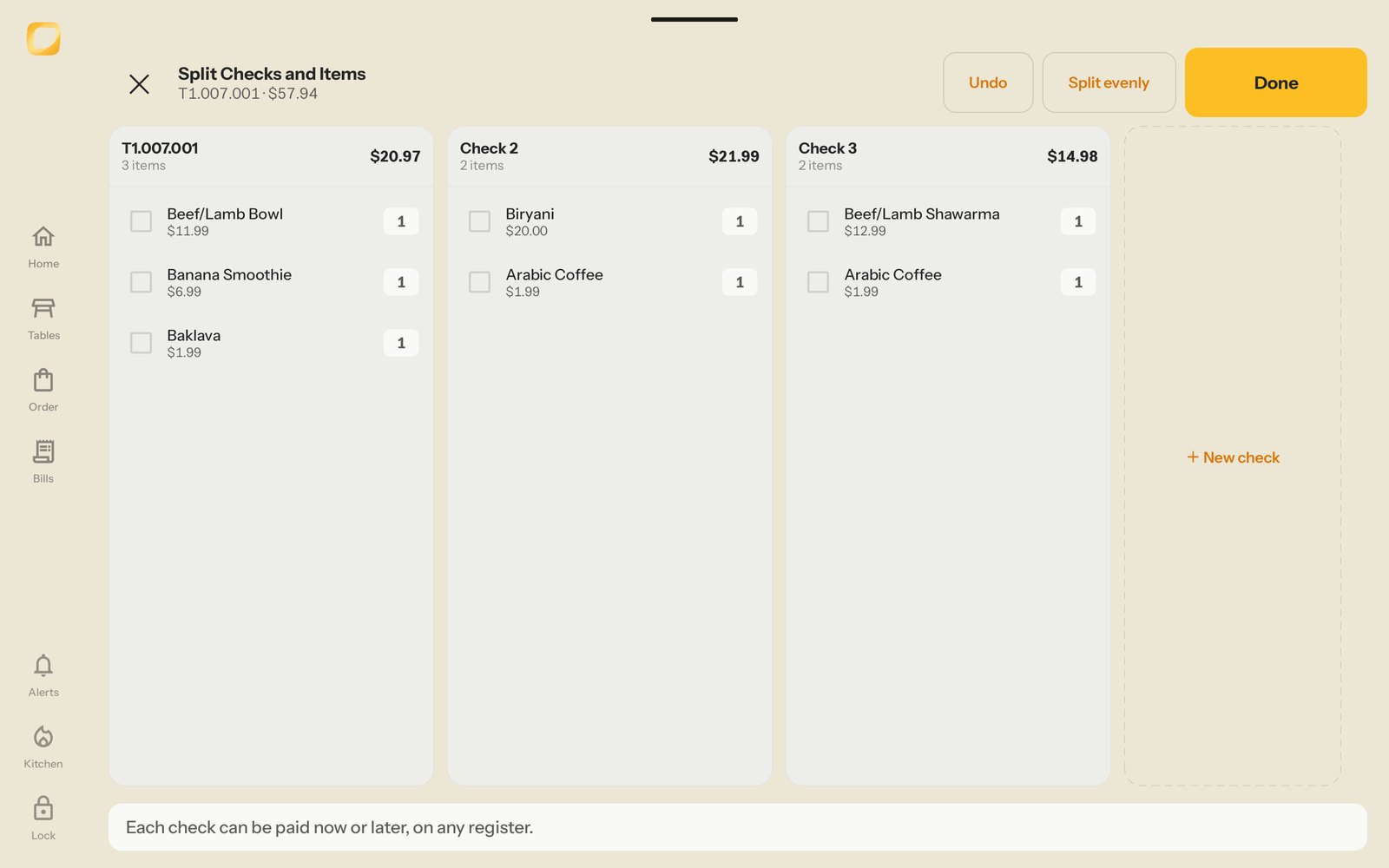
Changed your mind before tapping Done? Undo at the top takes back your last move, and the ✕ leaves without splitting. Nothing is saved until Done.
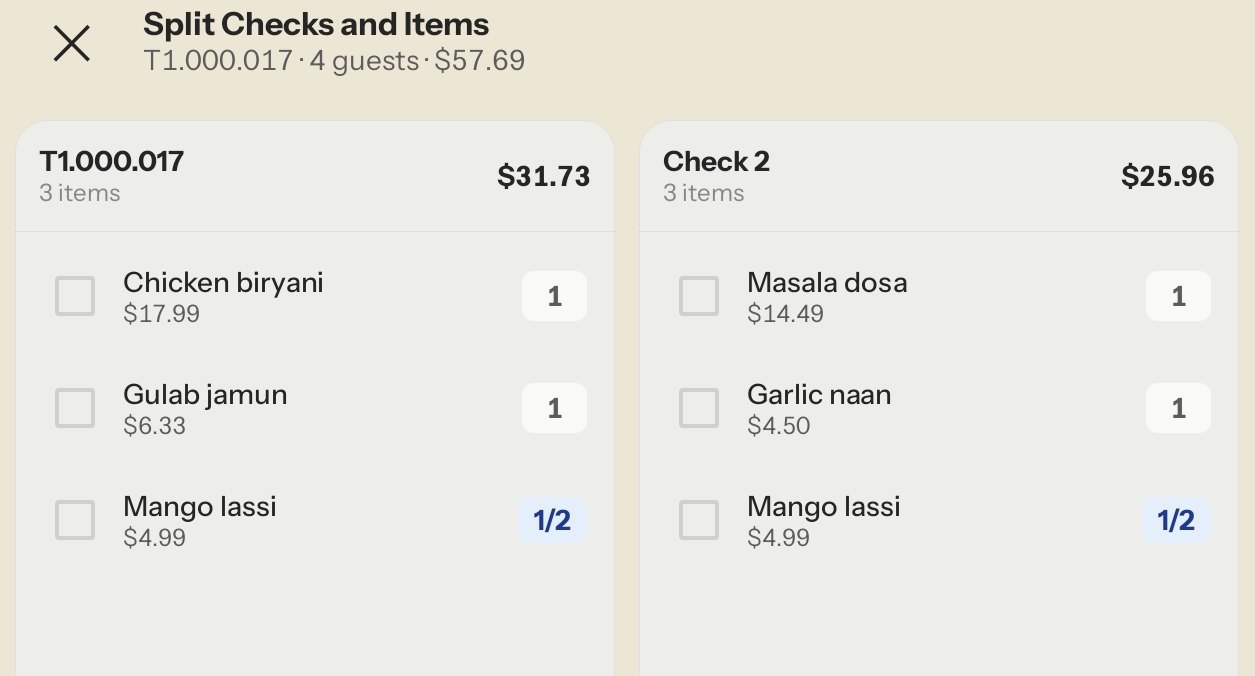
share one dish between guests
Two guests split a lassi? Tick just that item, tap Split evenly, and choose 2. The dish becomes two shares marked 1/2, and you move each share onto a check.
2. split the whole ticket evenly into checks
For a group that shared everything:
- On Split Checks and Items, make sure nothing is ticked.
- Tap Split evenly.
- Enter the number of guests (2 to 9) and tap Done.
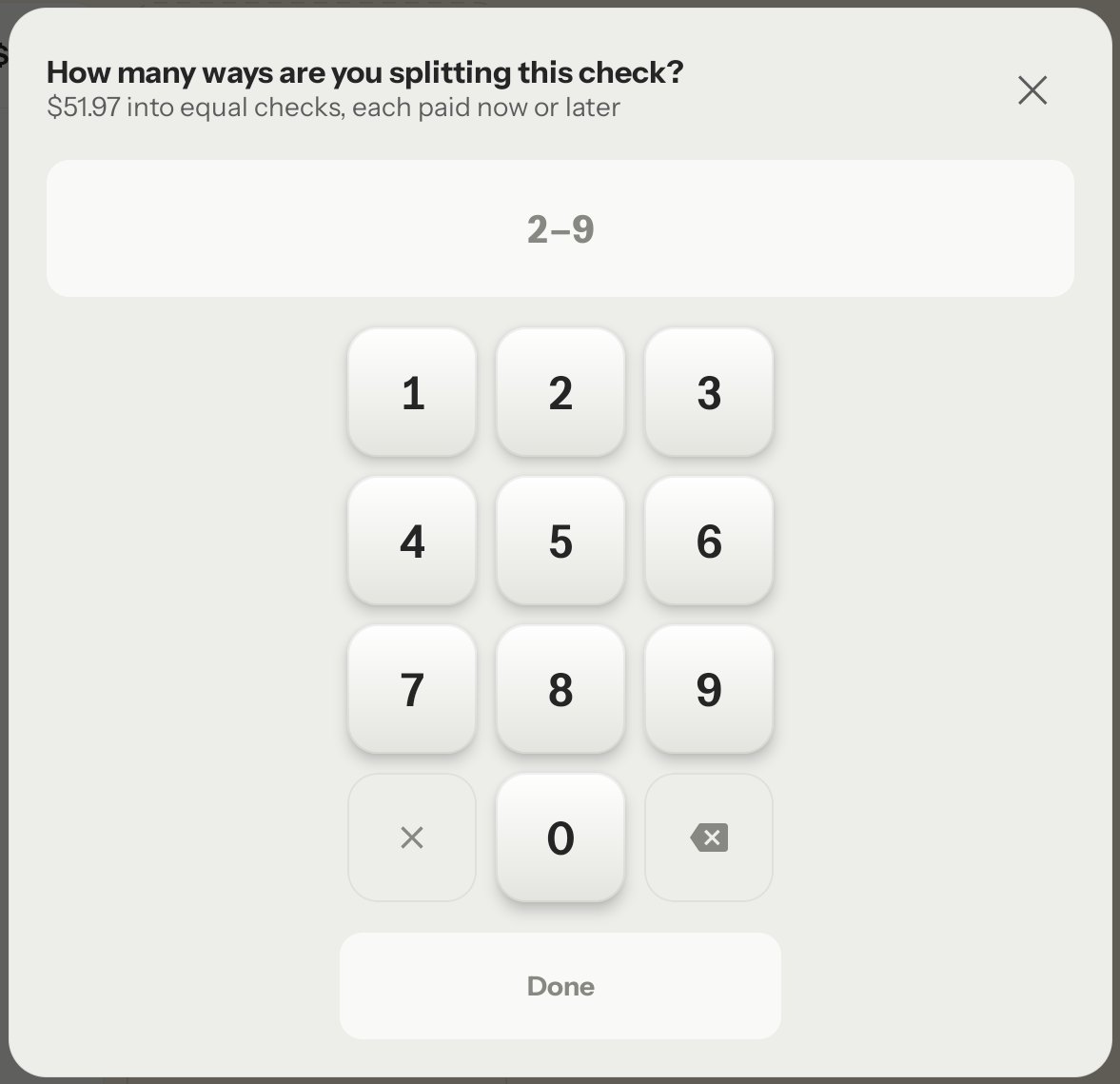
Each check carries a "Share 1 of 2" line. When the total doesn't divide evenly, the extra cent goes on the last check: $51.97 becomes $25.98 + $25.99. Your sales reports still count the real dishes from the original ticket, including Food vs Drinks.
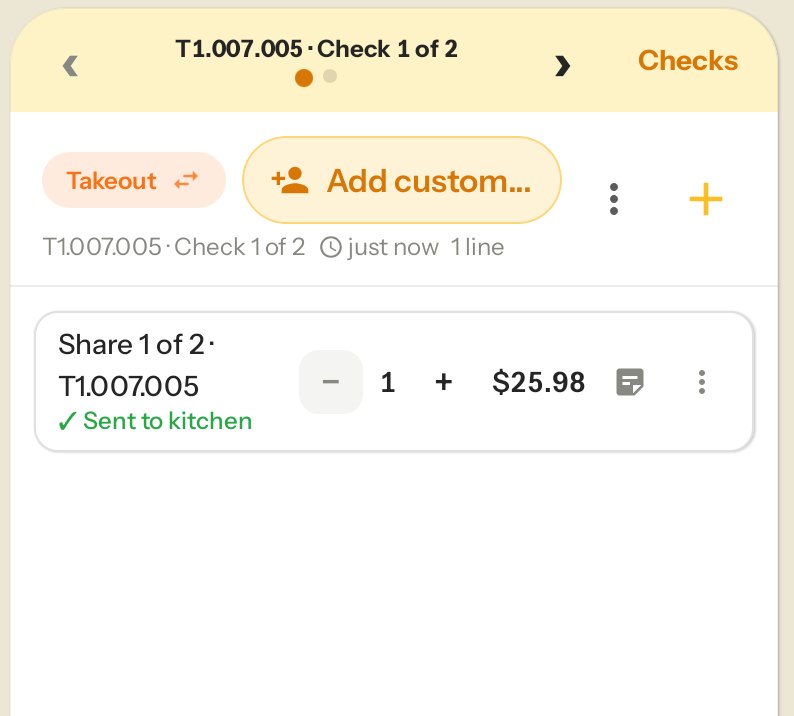
paying the checks: now, later, or on another register
After Done, the order panel shows one check at a time: "T1.007.001 · Check 1 of 3". Use ‹ › to switch checks, and anything you add goes on that check only. Tap Checks to see them all.
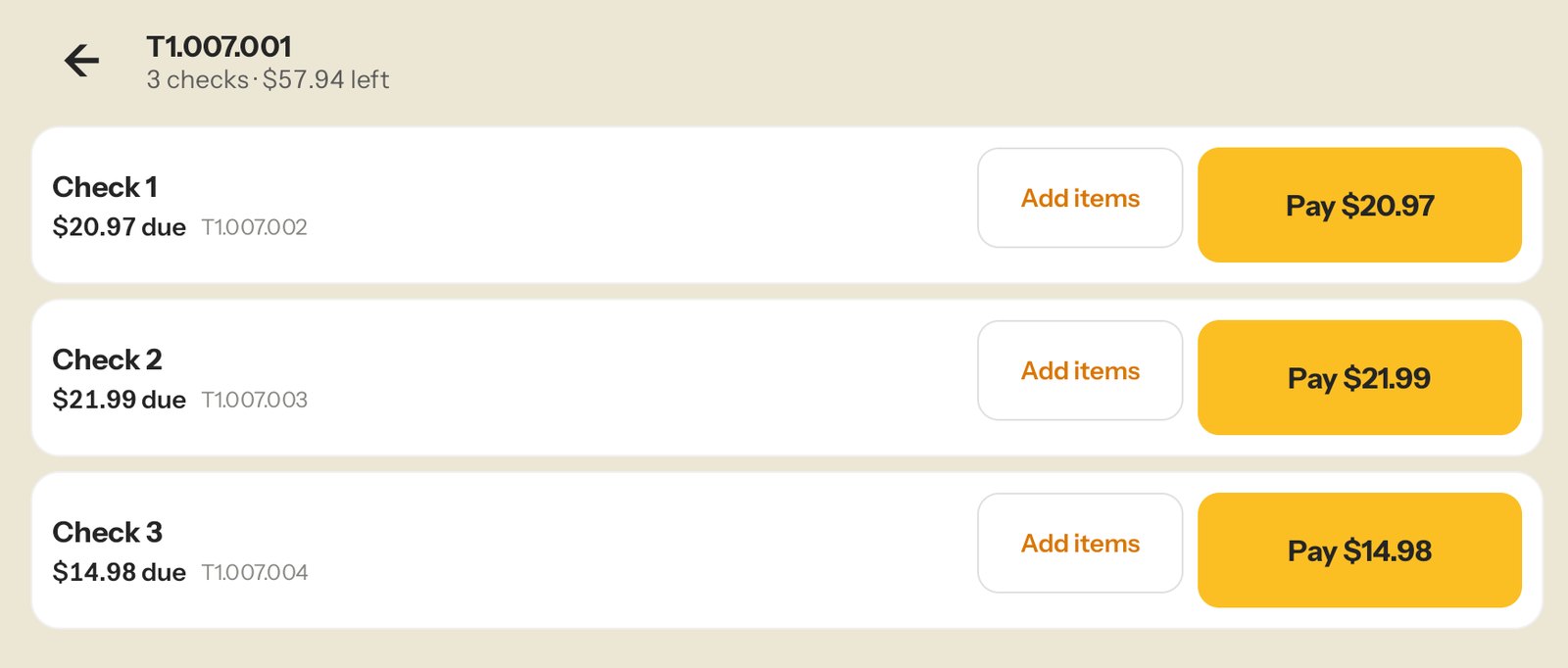
Tap Pay on a check to take that guest's payment by card, cash or QR, with their own tip and their own receipt. Print all checks prints every unpaid check, and when QR pay is on, each one has its own QR code.
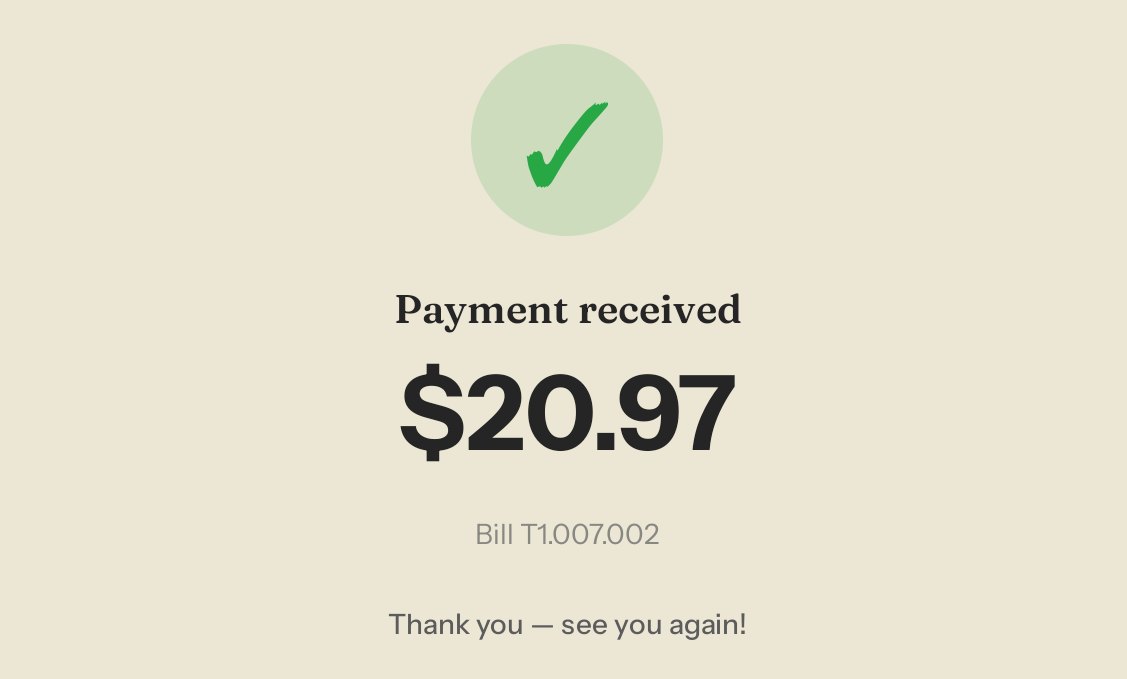
Pay one check now and leave the rest. On the Open list the table is still one ticket, showing how many checks are paid and what's left:

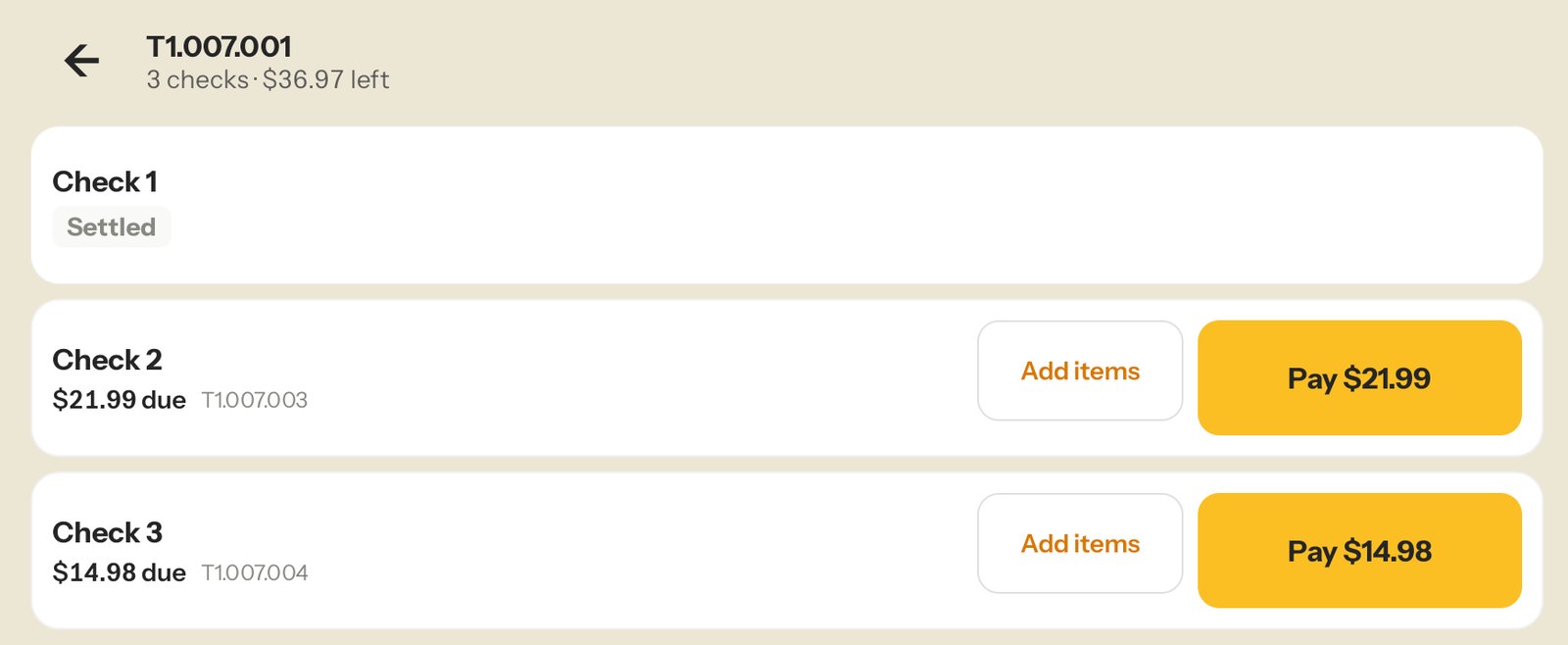
The checks are saved on the server, not on one tablet, so a second register can open the same ticket from Bills → Open and take the remaining payments.
3. split evenly and pay here
When everyone is paying right now and you don't need separate checks, split right on the payment screen:
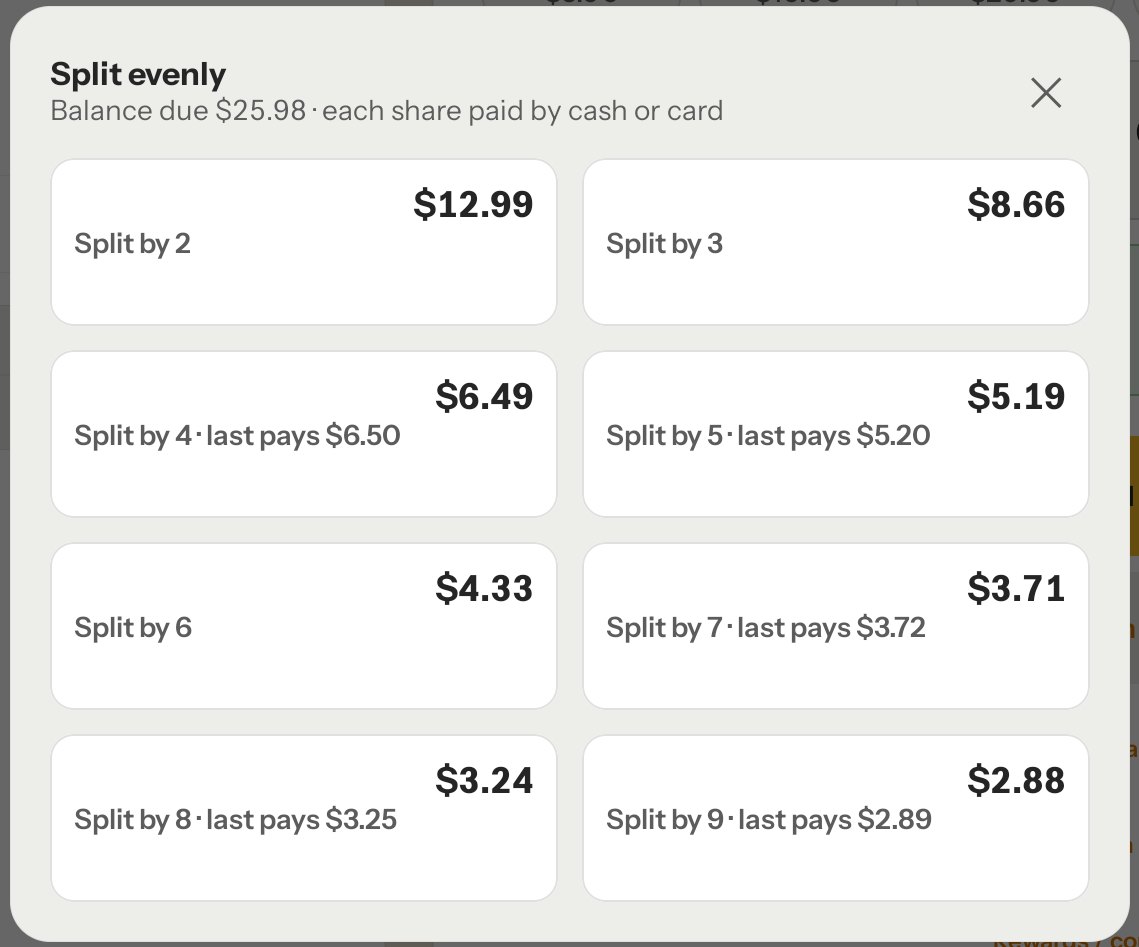
- Tap the purple Split button, then Split evenly · pay here.
- Pick how many ways. Each option shows the share, and what the last guest pays when it doesn't divide evenly.
- Take each share by card or cash. The next share comes up automatically.
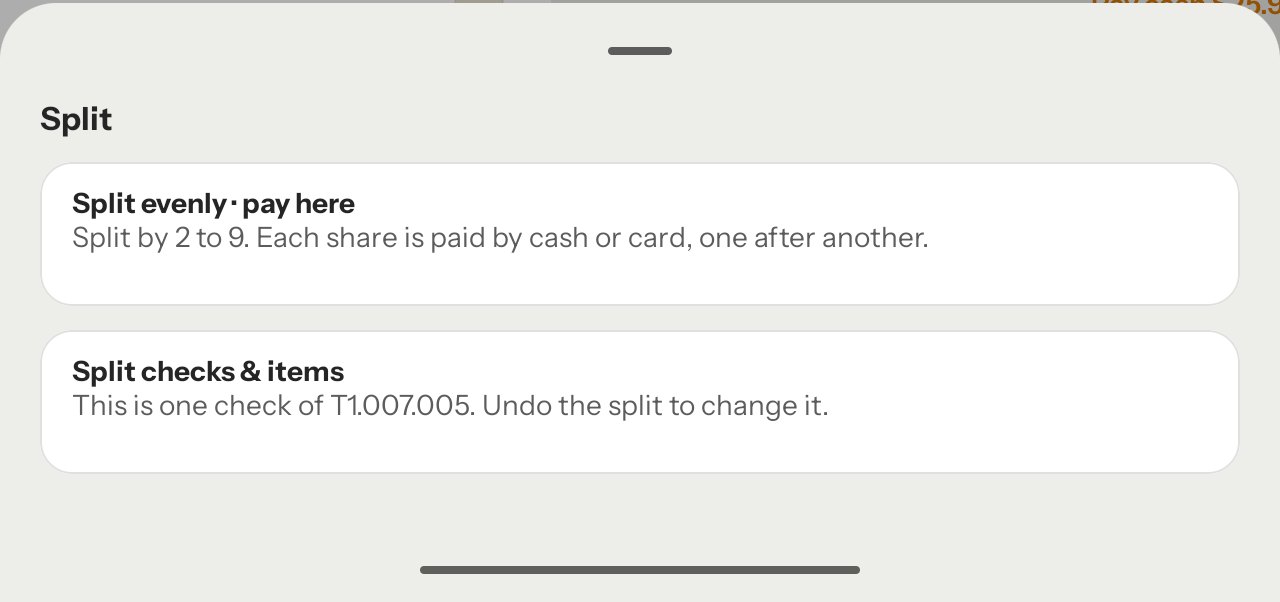
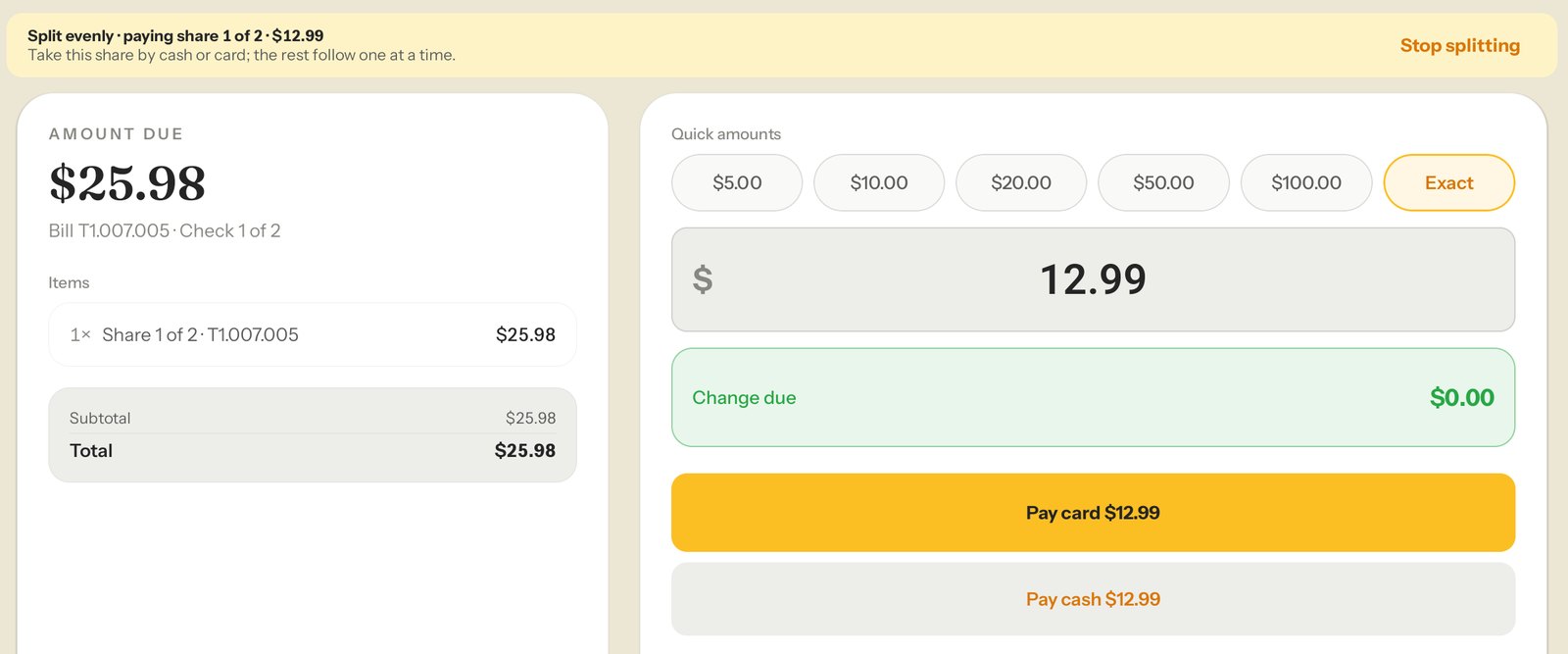
Stop splitting goes back to a single payment, as long as no share has been paid.
undo a split
Guests changed their minds and want one bill? If nobody has paid yet, open the ticket's Checks screen, tap Undo split, and confirm. The original ticket comes back exactly as it was, with every dish on one total, and you can split it again any way you like.
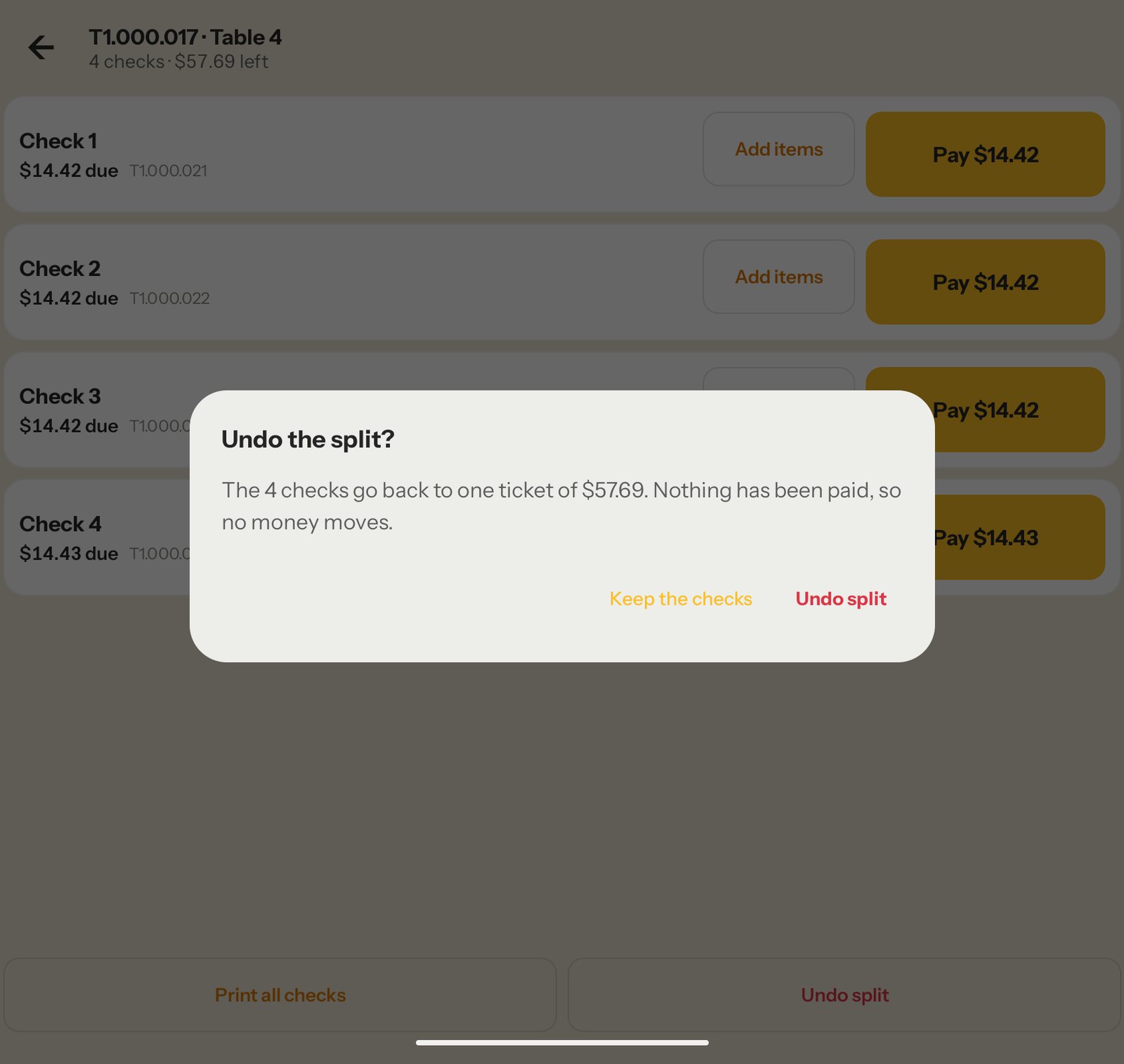
If you added a drink to one check after splitting, it moves back onto the ticket too, and the kitchen isn't sent anything again. Once any check has a payment or a card on hold, the split can't be undone. Take the remaining checks' payments as they are.
good to know
- Partly paid tickets can't be split. Split before taking any payment.
- Card on hold? Close it on that card first.
- Tips are per check, so each guest chooses their own.
- Offline, separate checks need a connection; Split offers "split and pay everyone here now" instead.
- Reports read the same as if the ticket were paid whole, and a split is never counted as a void.

Everything here needs HappySpace POS v0.1.70 or newer. Registers update automatically.
Want the whole thing on paper for your team? Download the staff guide (PDF) and the one-page quick card.